
If you run a car dealership, having a professional email address on your own domain (like rosh@autoro.space) isn’t just about looking professional - it’s about getting your emails into inboxes instead of spam. When we consider the car / motor dealership industry - and to contextualise the importance - see the below list of why this worth the time to set up:
3 reasons why a domain email matters for car dealerships
- Professional branding in emails builds trust with potential buyers.
- Proper email authentication (SPF/DKIM/DMARC) prevents your emails from going to spam.
- Warmed-up emails improve response rates for outreach campaigns like new inventory announcements or test-drive invites.
In this blog post we show the step-by-step instructions needed to be able to create a domain-email address (e.g. rosh@bmwM3.com) and start sending and receiving emails from prospects. The following also assumes you are working with Google Workspaces. To follow this blog post well - have both the Google Workspaces window open + a separate window for where you bought your domain from (Namecheap)
Step 1 (a prerequisite): Buy a Domain
If you don’t already own one, buy a domain from a registrar like Namecheap. For example: https://autoro.space - or bmwm3.host. Your domain is your “digital storefront,” and your email will be associated on/with it.
Step 2: Sign Up for Google Workspace to use GMAIL to send emails
Go to Google Workspace and choose "Business Starter (~$7/month per user)." tier. This tier is all you'll need to manage your emails and use AI features. Note - when asked for an admin email, you should temporarily use your personal Gmail! This is confusing for most people. But dont worry, on the next page you can create your first car dealership business email address - like: rosh@autoro.space.
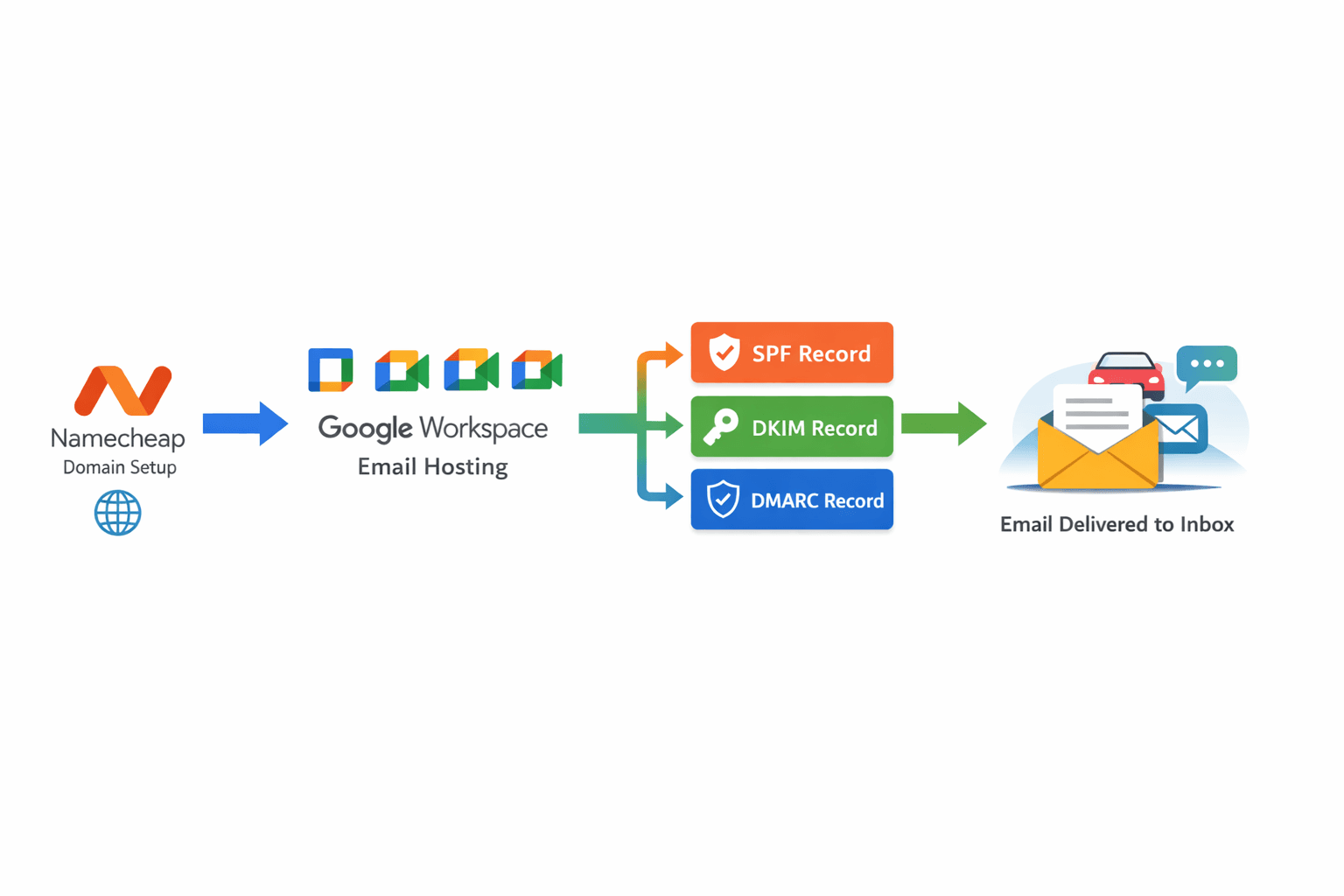
Step 3: Verify Your Domain (slightly technical - but we'll explain all the steps below)
As mentioned - some technicalities to explain here - and not as scary as it seeems. Certainly there is nothing you can do that will damage your domain/site and isnt reversible! But before we go into the technicals, you need to understand what we are attempting to do.
Fundamentally - we need to tell Google that you own your domain and that you have the rights to create email addresses for m3@bmw.com or tesla@elon.com etc. In other words, google needs to know you own your domain before it will allow you to securely send and receive emails. The way google does this is it asks you to store a secret digital key (a string of text) from where you bought your domain (namecheap in most cases). In order to add this key, you will need to login to the domain provider and update some settings. When you add this key - google can then check with the domain provider that they have the key and ergo - that you own that domain.
Copy the TXT record from the google workspace guide and head over to your domain host site and find the domain you purchased. In our case, we went to Namecheap → Domain List → autoro.space. Advanced DNS → Host Records. There will be an option for advanced settings. Click into that to see a table view of a bunch of keys! In this page, create a new table entry of type:
- Type: TXT
- Host: @
- Value: (paste Google’s verification string)
Save changes and click Verify in Google Workspace.
Note! DNS changes can take 5–60 minutes to propagate globally. In most cases this feels fairly instant.
Step 4: Add MX Records (Google Mail Servers)
Now that google has verified you own your domain - google now want to tell your domain host that it will handle all things relating to sending/recieving emails for that domain. MX records (Mail Exchange records) specify which mail servers are responsible for receiving emails for your domain, ensuring messages sent to addresses like sales@yourdealership.com are delivered to the correct email provider. MX records direct your email to Google’s servers so you can send/receive from your dealership address. Please make sure you remove existing MX records - as you should only have google responsible for email management.
Add the following Google MX records (these are the same for everyone!):
- Type	Host	Value	Priority
- MX	@	ASPMX.L.GOOGLE.COM	1
- MX	@	ALT1.ASPMX.L.GOOGLE.COM	5
- MX	@	ALT2.ASPMX.L.GOOGLE.COM	5
- MX	@	ALT3.ASPMX.L.GOOGLE.COM	10
- MX	@	ALT4.ASPMX.L.GOOGLE.COM	10
- TTL: Automatic
Step 5: Add an DKIM Record for Authentication (the longest step!)
DomainKeys Identified Mail. DKIM proves your emails are authentic and haven’t been tampered with. In other words, DKIM proves that your emails really come from your domains. Its also added as a TXT record to your domain name server - but serves a different purpose. As a reminder, the original TXT file we added in step 2 proves you control/own the domain. DKIM contains a cryptographic key. When you send an email, Google signs it with this key so receiving mail servers can verify that the message really came from your domain and wasn’t altered in transit.
In the Google Admin Console, navigate to Apps, Google Workspace, Gmail and then Authenticate email. Generate a 2048-bit DKIM key (the stronger the better).
Then in your domain host (e.g. Namecheap) add a new TXT record using the following structure:
- Type: TXT
- Host: google._domainkey
- Value: (paste full DKIM key in the format: =DKIM1; k=rsa; p=xxxxxx)
Navigate back to your Google Workspaces window to Save and click Start authentication.
Note - DNS propagation of DKIM records takes some time! In our case - the first two attempts to create our car dealership website failed because we were too keen to start authentication of our DKIM records from google after putting them in our domain host - Namecheap. In reality, after the DKIM record is generated (by google or someone else) and you add those to your domain host as a txt record, it can take 60 minutes.
If you want to check the progress of your DKIM propagation - you can use a website to check the propagation of your TXT records to DNS sites across the world. Simply use the website below and search for your 'TXT' records for your domain.
To test your
https://www.whatsmydns.net
Tip: It’s normal for some locations to show red in propagation tools at first. Wait 30–60 minutes.
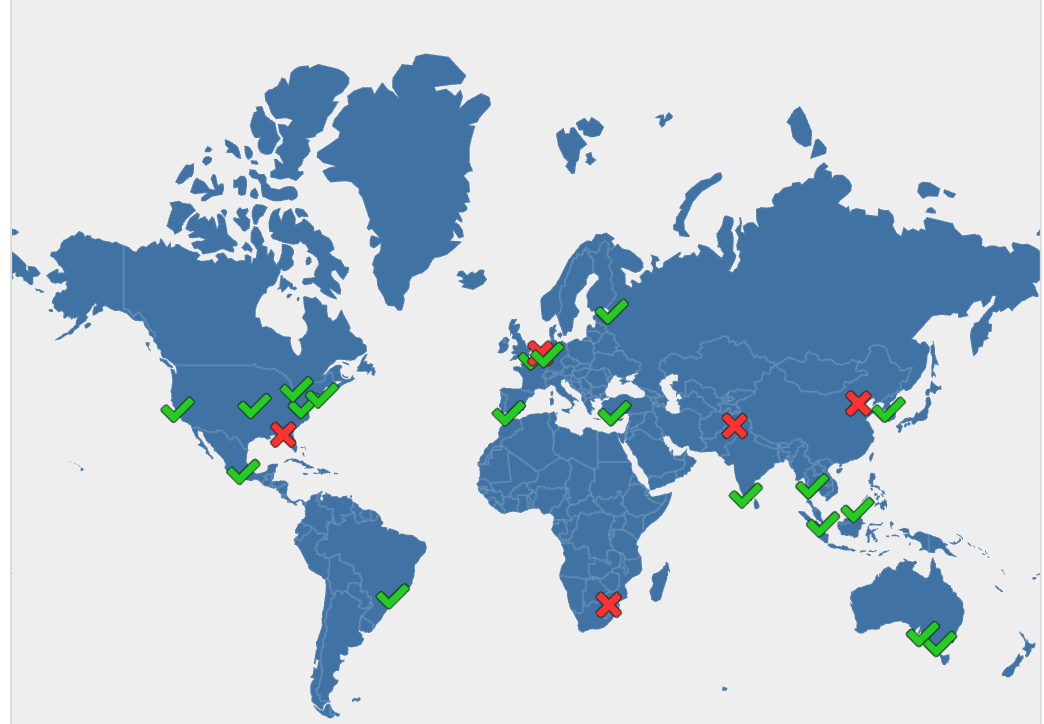
You do not need to wait for all the server sites to be 'green ticks' before attempting DNS DKIM resolution again via google workspaces. Google doesn’t require 100% global propagation. As long as your record is visible in most locations (and especially in the US), Google will usually authenticate once the record has propagated sufficiently.
Step 6: Add an SPF Record
Going back to your google workspace console - we now need to complete SPF record entries. SPF tells mail servers which servers are allowed to send email on your behalf.
Add TXT record in your domains host → host records in the format:
Type: TXT
Host: @
Value: v=spf1 include:_spf.google.com ~all
Step 7: Add an DMARC Record
DMARC monitors and protects your domain from spoofing. Add TXT record in domain host → host records in the format:
Type: TXT
Host: _dmarc
Value:v=DMARC1; p=none; rua=mailto:<YOUR EMAIL WITHOUT THE CHEVRONS>
Step 8: Test Your Email
OK, that was a lot of records to add for your car dealership website. But remember, this is all necessary to provide a professional business domain that is secure and safe for you to integrate into GMAIL. Now, you can send a test email from your google email to any email address. Happy sending!